

Deep Research
Deep Research currently enabled for a subset of our partners. If you think your team could benefit from this feature, please reach out to us on Slack to connect.
What is Deep Research?Deep Research allows your team to uncover custom, AI-driven insights from your own data, allowing you to answer complex business questions with precision. Instead of spending hour sifting through reports, Deep Research provides intelligence for accounts and opportunities, so your team can focus on execution.
Example insights you can target using Deep Research:
- Pricing dynamics: “Was pricing considered a blocker?”
- Competitive landscapes: “Which competitors were present in the deal?”
- Persona Engagement: “At what stage did the IT persona get involved?”
These insights provide the tools to move beyond surface-level reports to truly understand the “why” behind what moves deals forward.
Deep Research Queries Examples
| Multi-thread velocity | For sales accepted deals, how many days does it take to multi-thread into 3 members of the buying group? |
|---|---|
| Reject reason identification | Reclassify rejected deals into new categories based on the context available in communication records. |
| Flagship event influence | Assess opportunities for inferred influence from a specific high-value event, even if poorly tracked. |
| Referral identification | For a given set of opportunities, identify if the prospect was referred by a 3rd party, and if so, identify the referrer and the time/place where the referral occurred. |
| Frequently asked questions | For a given set of opportunities, identify the questions that prospects ask during their evaluation. The questions can be aggregated to develop a public-facing FAQ. |
| Account dossier | Prepare a 1-page transition document for a given list of accounts to aid account executives that are taking ownership of the accounts. It should include current state, active prospects, prior challenges/blockers, and incumbent renewal dates. |
| Customer sentiment during a specific period | For a given set of opportunities, identify customer sentiment during a specific period — for example, the implementation phase. |
| Competitor identification | For a given set of opportunities, identify which competitors were considered and which competitors won the deal, if applicable. |
Dataset List
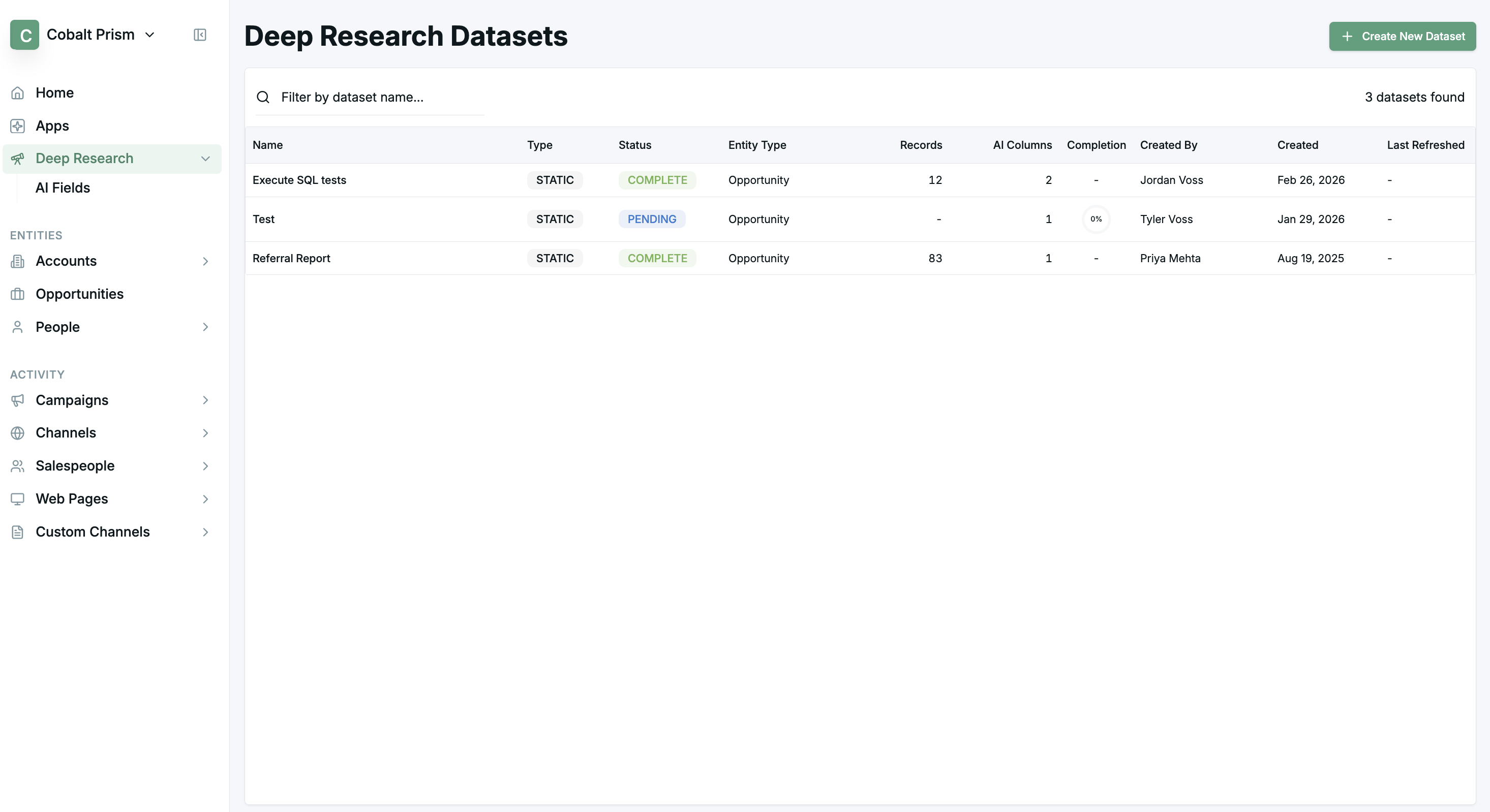
- The Deep Research Datasets or Dataset List page provides an overview of each dataset you have created.
- Next to each dataset name, the type, status, entity type, number of records, and number of AI columns is displayed.
- Use the search bar to query by dataset name.
- Click to enter into any dataset.
Creating Datasets
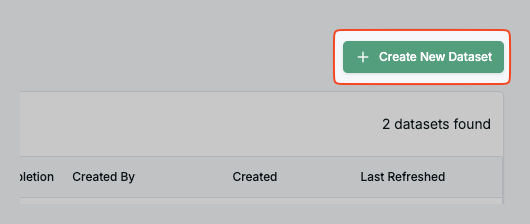
- Use the Create New Dataset button on the Deep Research Datasets page to generate a new blank dataset to submit for processing.
-
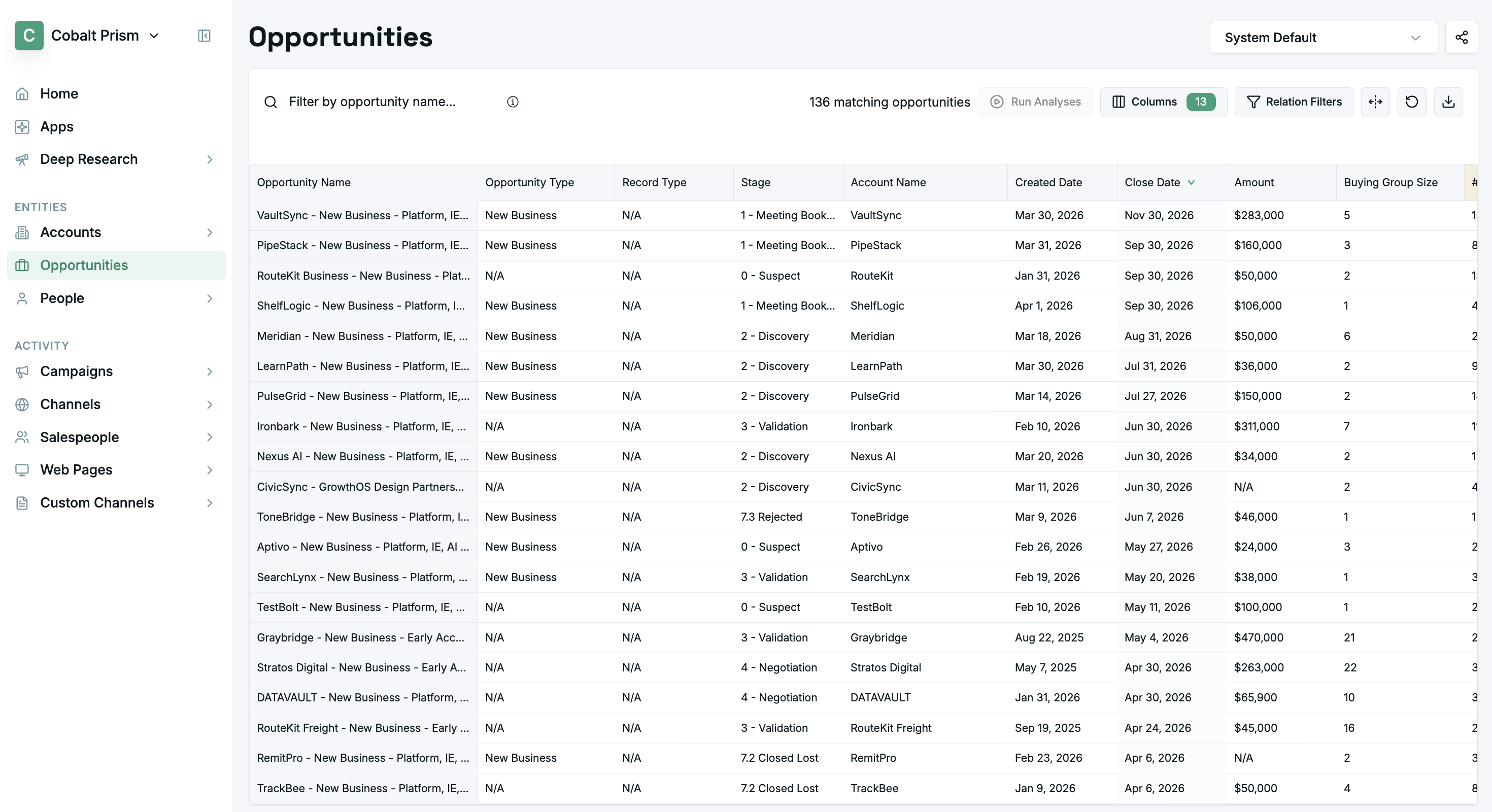
Once the new dataset is created created, you can:
- Filter by Opportunity or Account Name entity types.
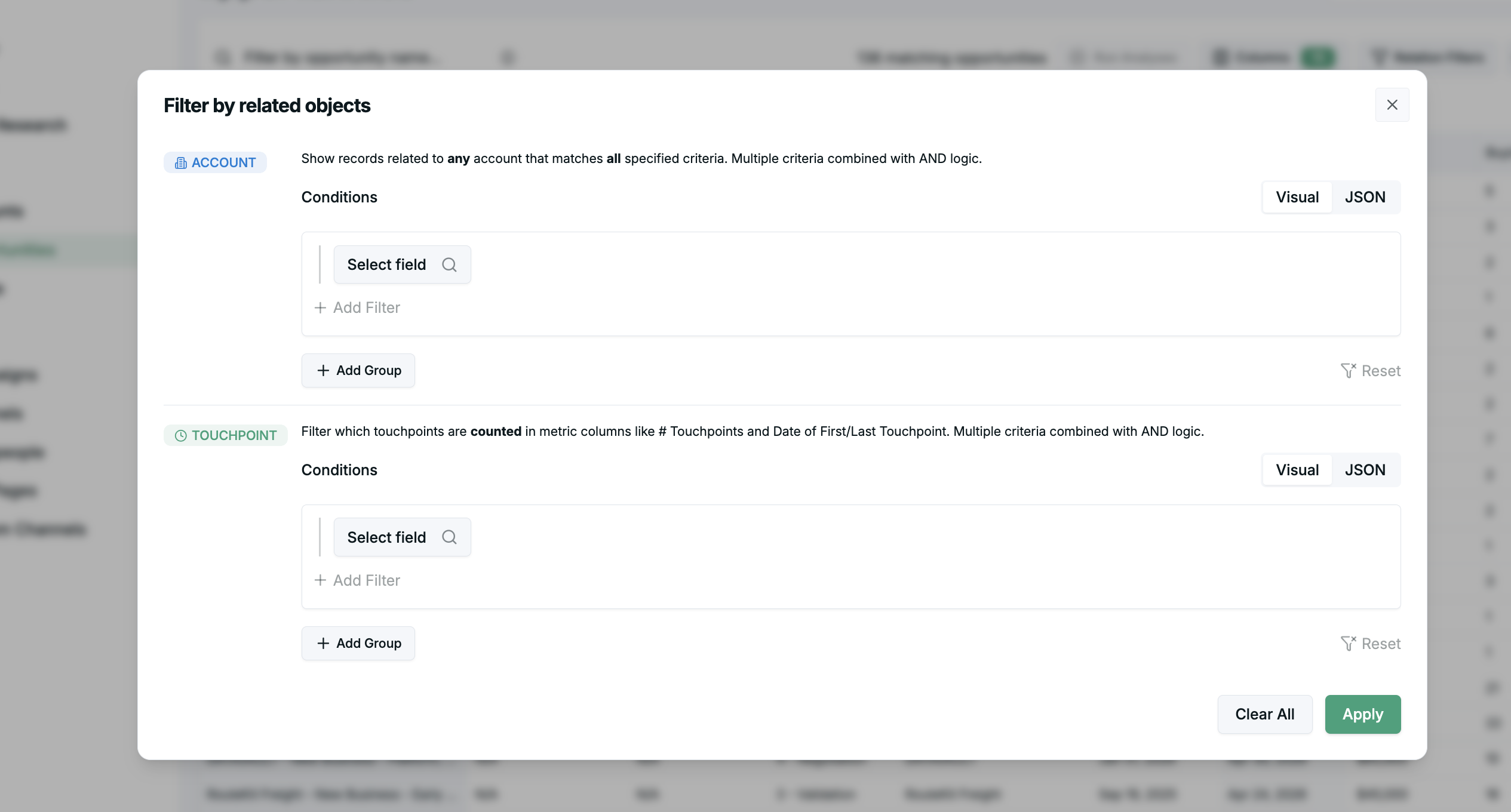
-
Use the Columns dropdown to select or deselect specific columns.

-
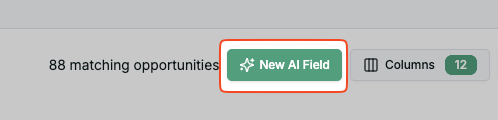
Add and create AI Fields by selecting the New AI Field button and opening the modal.
Creating AI Fields
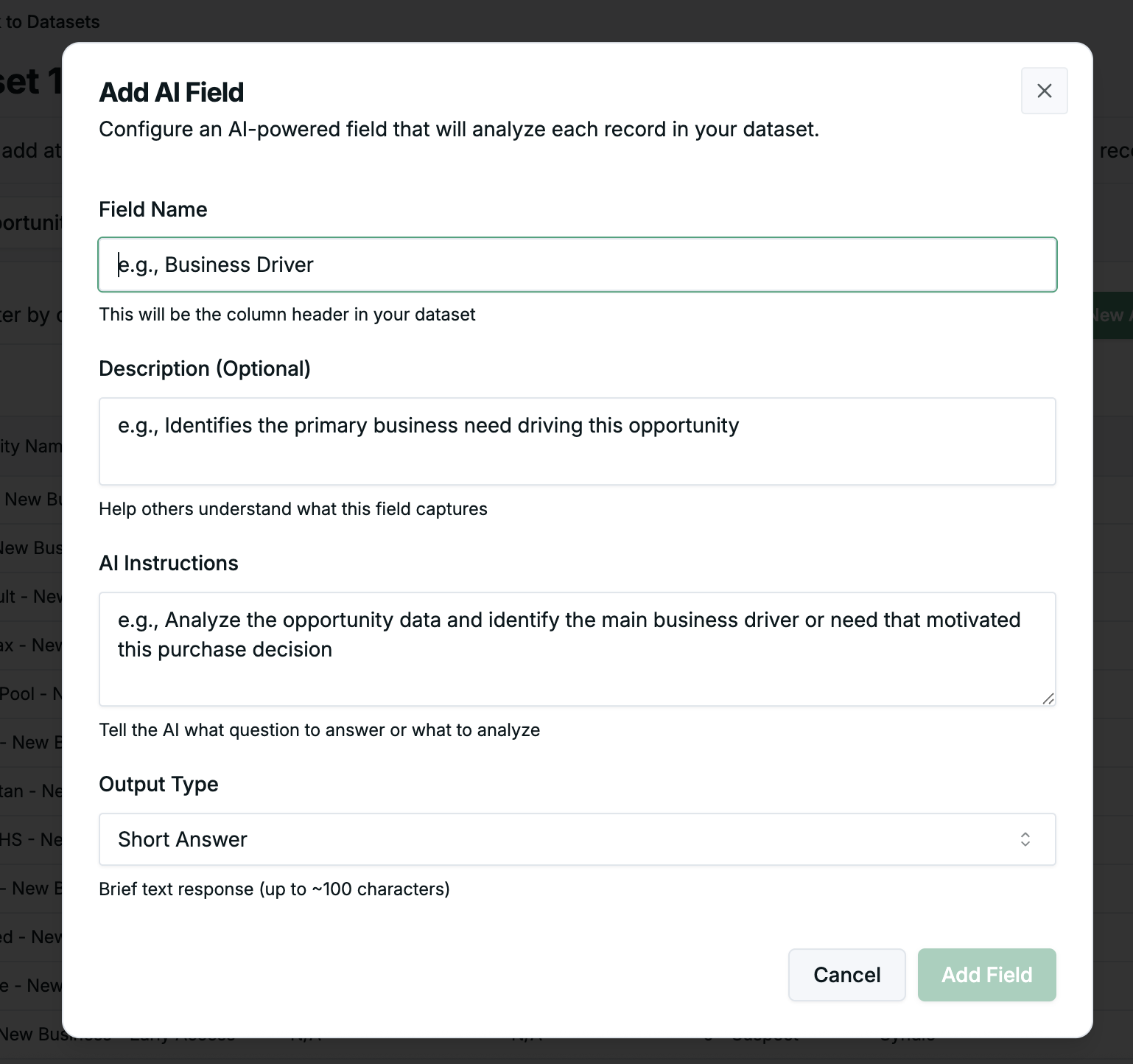
- Field Name: Enter the field name or alias under which this field can be found.
- Description (optional): Enter an optional description of the field’s purpose for your human team members.
- AI Instructions: Enter the instructions for the agents. The best instructions will be detailed and straightforward.
- Output Type: Select output type from a dropdown of Short Answer, Long Answer, Single-Select, and Multi-Select. For Single- and Multi-Select, an additional field will appear, prompting the input of selection options.
Report View
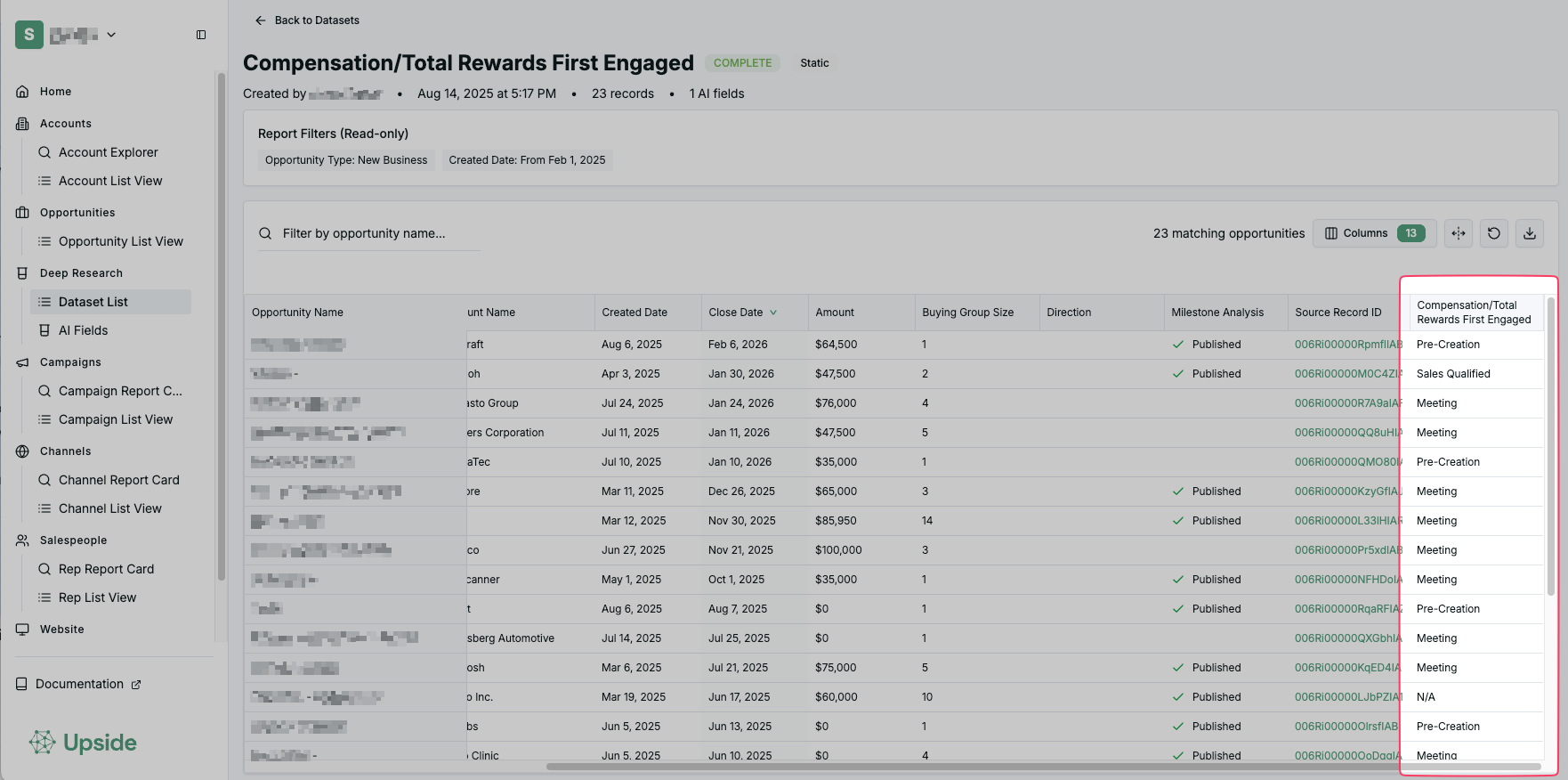
- Each Report View displays a single dataset with each Opportunity or Account’s details, along with answers to the questions asked by your pre-specified AI Fields. In the example above, the AI Field used was “Compensation/Total Rewards First Engaged.”
AI Fields
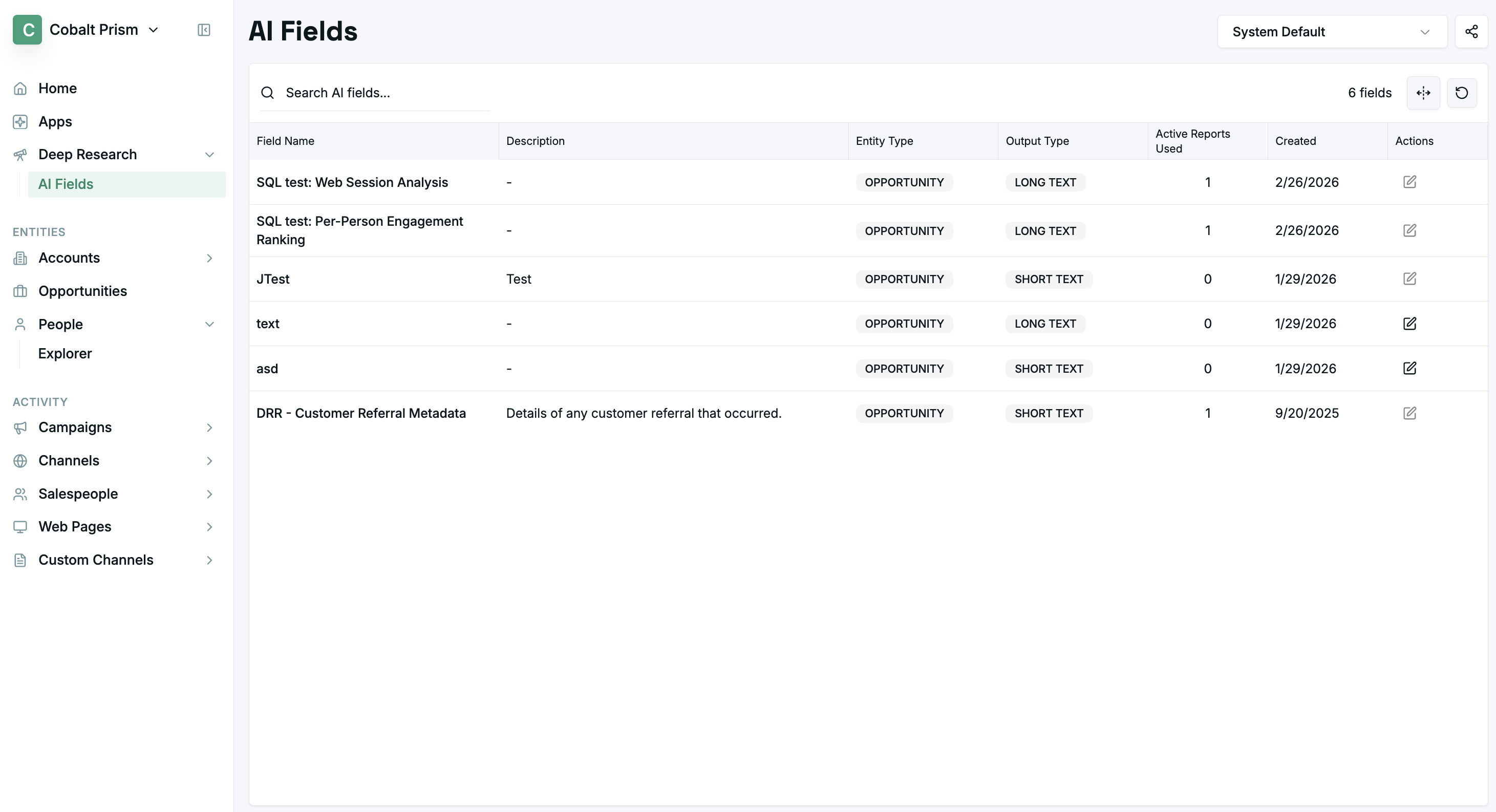
- The AI Fields page displays a list of all created AI Fields in your organization for you to easily access and edit your desired one.
- Next to each Field Name, the Description (for human team members), Entity type (Account or Opportunity), Output type, and the number of active reports utilizing the field are displayed.
Deep Research via MCP (Beta)
Deep Research via MCP is currently in beta. It is enabled per organization by Upside. Interested in testing it? Reach out to us on Slack.
Run the same research question across a batch of deals, accounts, or people — all through your MCP-connected agent. Instead of analyzing records one at a time, you define the question once and execute it at scale.
How it works
- Create an analysis — Give it a name, choose the entity type (account, opportunity, or person), write the prompt, and define the output.
- Define a record set — Specify which records to analyze. Record sets are reusable across analyses.
- Preview the run — Use preview mode to validate the setup and see the estimated record count.
- Execute — Trigger the run. It starts immediately and processes records asynchronously.
- Review results — Check progress and read answers (including drafts) as records complete.
- Publish — When you're satisfied, publish the run to make your answers official. Published results automatically sync.
Key concepts
| Concept | Details |
|---|---|
| Entity types | Account, Opportunity, or Person |
| Record sets | Define which records to analyze. Reusable across analyses. |
| Runs | Each execution is versioned. You can re-run an analysis as many times as you need. |
| Drafts vs. published | Results start as drafts. Publishing promotes them and syncs. |
| Prompt versions | Editing a prompt creates a new version. Existing runs stay pinned to their original prompt. |
Run statuses
| Status | Meaning |
|---|---|
queued | Run created, waiting for processing to begin |
running | Records are being processed |
succeeded | All records completed successfully |
partial | Some records succeeded, some failed |
failed | All records failed |
Example workflow
Ask your MCP-connected agent something like:
"Create a Deep Research analysis called 'Competitor Mentions' that looks at each opportunity and identifies which competitors were discussed in calls and emails. Run it across all opportunities that closed in Q3 2026."
The agent will:
- Create the analysis with the appropriate prompt and output schema
- Define a record set using a SQL query for Q3 closed opportunities
- Preview the run to confirm the record count
- Execute the run
- Report back with results as they complete
Updated 19 days ago