

In-App Agent
Use the in-app agent within the Upside dashboard to investigate your data, build miniapps, and take action. No code necessary.
The in-app agent is not currently enabled for all of our partners. If your team would be interested, please reach out to us on Slack to learn more!
The in-app agent lives inside the Upside dashboard. Open a chat, describe what you want in plain English, and the agent investigates your data, synthesizes an opinion, builds miniapps, or takes action — without you writing a single line of code.
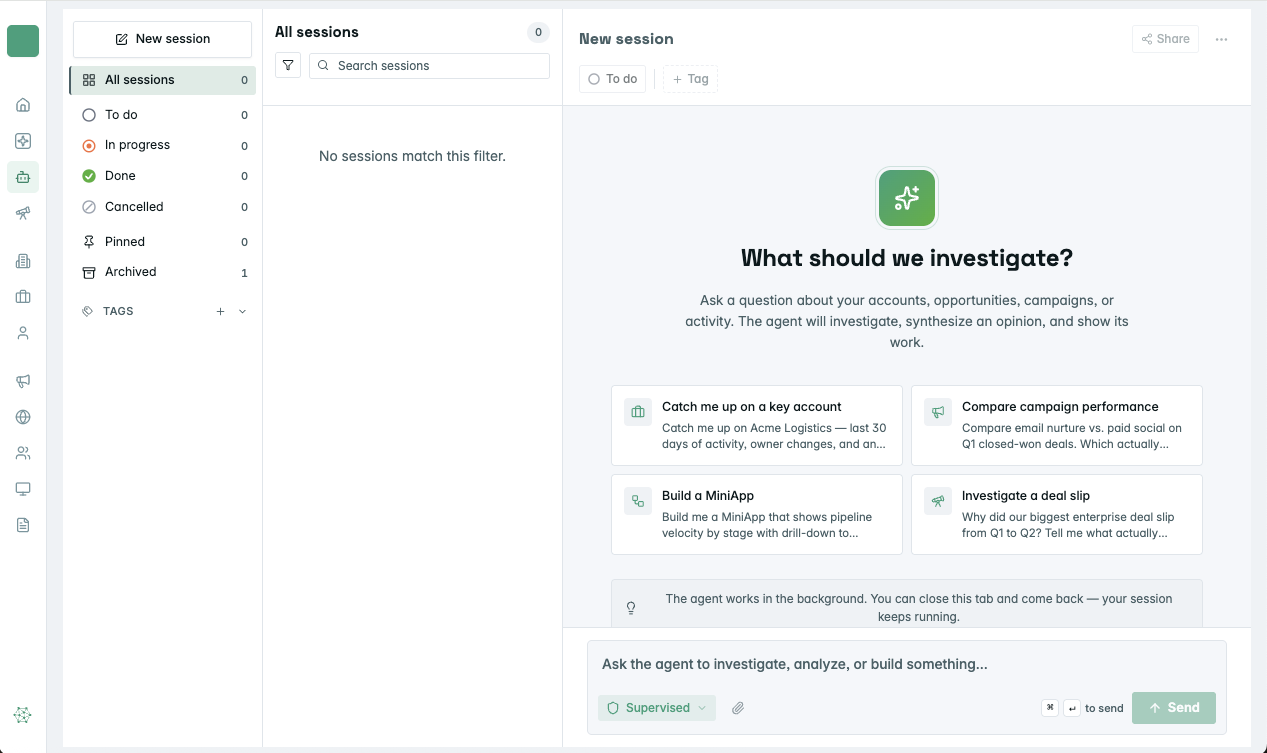
Sessions run in the background. You can close the tab and come back — the agent keeps working.
What you can ask it for
The agent investigates your accounts, opportunities, campaigns, and activity. Common starting points:
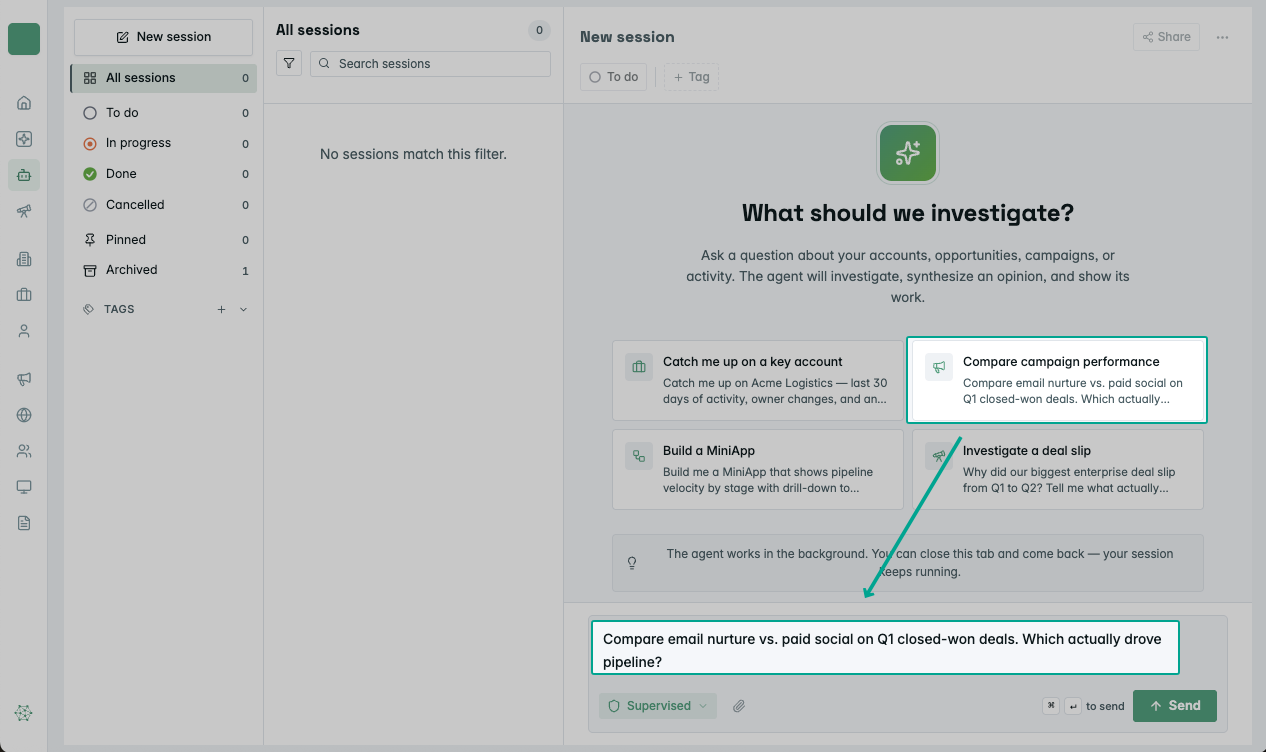
The new-session screen surfaces these as one-click starter cards — but you can type any question.
How to start a session
- Open the Agent section in the Upside dashboard (
/agent). - Start a new session — click New session at the top-left, or pick one of the starter cards on the right.
- Send your prompt — type any question or instruction and hit Send.
Each session gets its own page with a unique URL you can return to or share. The agent will auto-title the session based on what you asked.
Permission modes
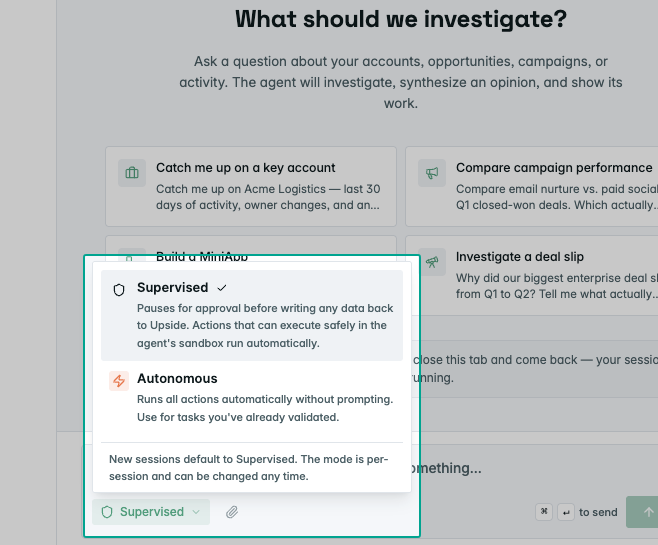
Each session has a permission mode that controls what the agent can do on its own. Switch modes from the dropdown in the input box.
The mode is per-session and can be changed any time. It doesn't carry over between sessions.
Watching the agent work
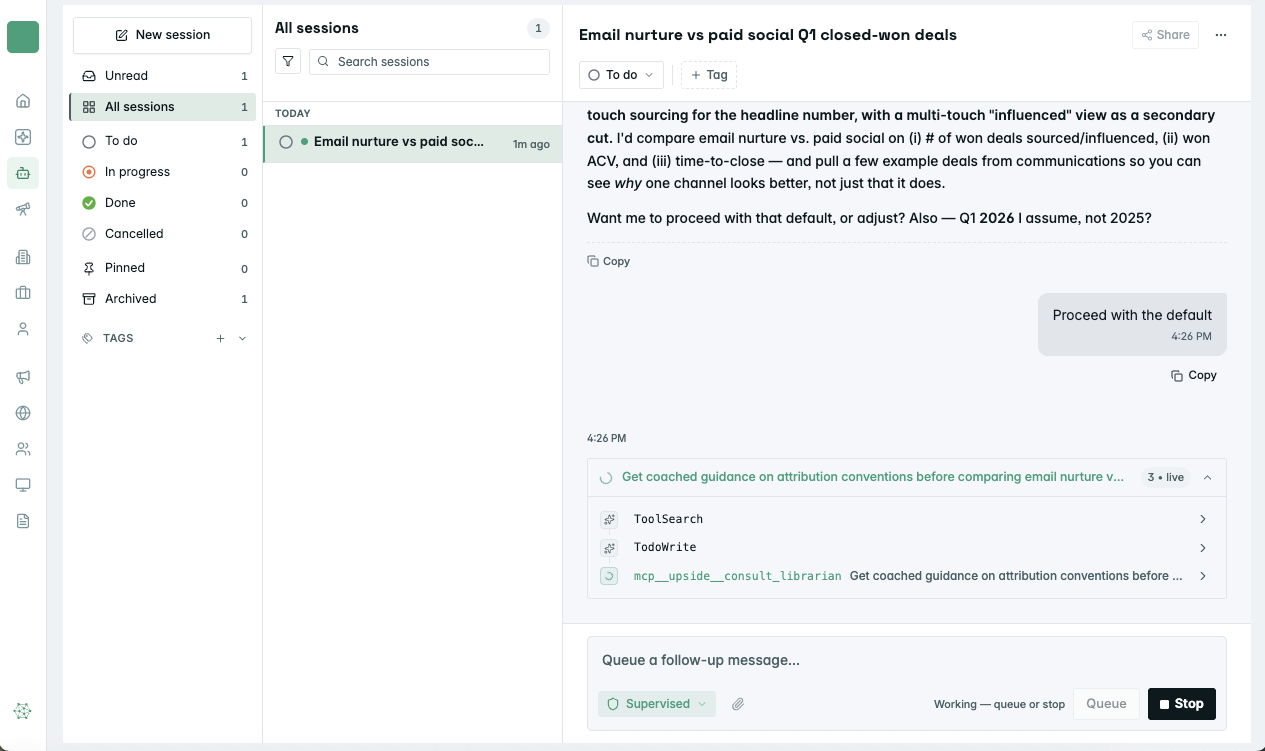
While the agent is working, the session view updates live:
- A timeline of every step — each tool call shows up with a short description. Click any row to expand it and see the details.
- Queue follow-ups while it's running — the input box switches to "Queue a follow-up message" so you can stack the next question without interrupting.
- Stop at any time — hit the Stop button to interrupt the current run.
Organizing your sessions
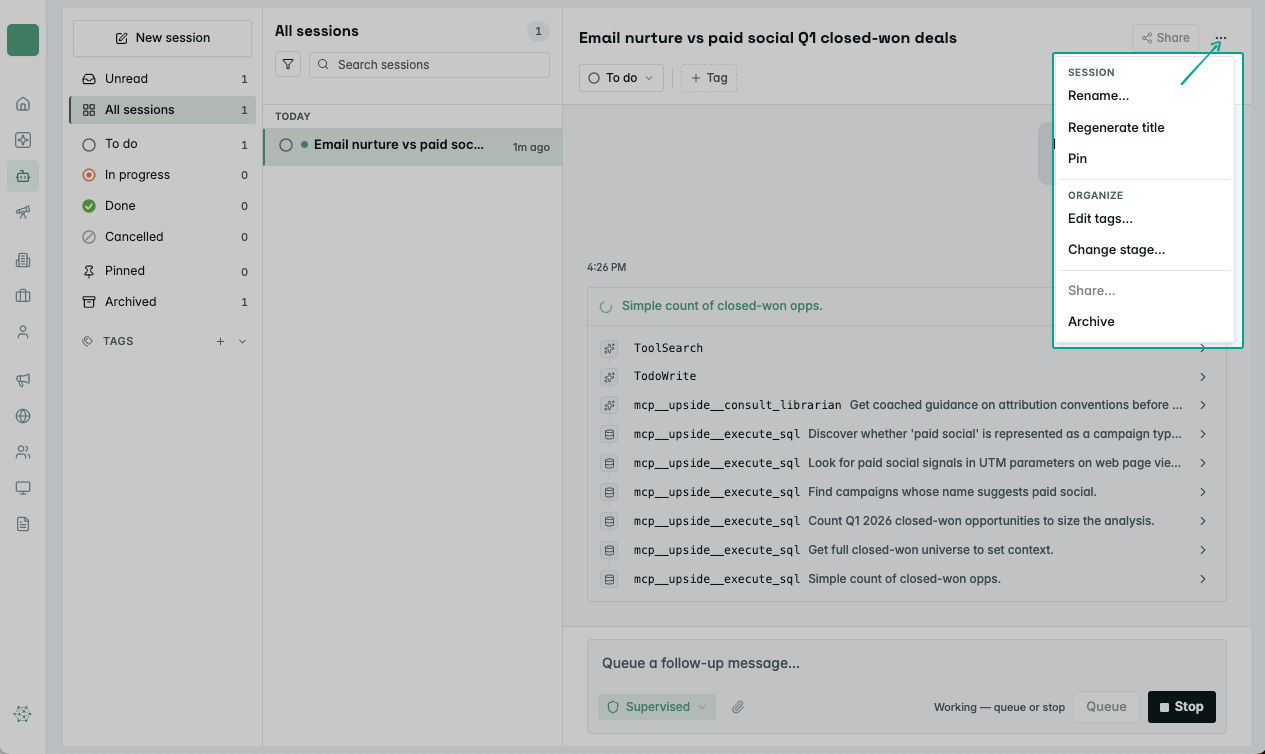
The left panel lists everything you've started, with filters and tags so you can find things later.
The ••• menu on any session also lets you Rename, Regenerate title, or Share the session.
Sharing a session
Hit Share at the top of any session to create a read-only snapshot. Send the link to teammates — they can see the conversation and what the agent did, but they can't continue the session or change anything.
Sessions are private by default — only you can see them until you share.
Building miniapps with the agent
When you ask the agent to build a miniapp, it follows the same lifecycle described in Miniapp Creation (draft → open → sealed → active). The only difference is where you're chatting — inside the dashboard instead of an external MCP client. The agent has the same tools either way.
Updated 5 months ago