

Knowledge Policies & Mining
How Upside automatically discovers org-specific facts from your usage patterns, and how approval policies give admins control over what enters your published library.
Your Knowledge Library gets smarter over time — not just from facts your team adds manually, but from patterns Upside discovers automatically. Knowledge mining is the engine that surfaces those patterns, and knowledge policies are the rules that govern what happens to them before they reach your published brief.
Knowledge Mining
Mining is how Upside finds facts your team hasn't written down yet. A specialized agent reviews how your team has been using Upside — the questions asked, the queries run, the patterns that repeat — and looks for org-specific knowledge worth capturing.
What the mining agent looks for
The agent focuses on facts that meet the same test as any knowledge entry: would an AI get this wrong without being told?
- Schema pitfalls — column names, join patterns, or field meanings that trip up queries for your specific data
- Terminology gaps — internal shorthand or team-specific language that differs from standard usage
- Business rules — filtering logic, stage definitions, or date conventions unique to your org
- Data quality caveats — known gaps, quirks, or traps in your data that lead to silently wrong answers
How it works
Mining runs automatically on a weekly schedule. Here's what happens behind the scenes:
Nothing goes live without your say-so. By default, mined entries follow the same review workflow as any other proposal — they land as pending suggestions that an admin must approve and publish. With a knowledge policy enabled, entries that match your rules can be auto-approved and published without manual review.
What you'll see
Mined proposals appear in your Changes tab alongside manually proposed entries. Each one is attributed to Knowledge mining and includes the evidence the agent used to support its finding. A source filter toggle lets you isolate mined proposals from team-submitted ones.
You review, approve, or reject them exactly the way you would any other suggestion — the full workflow described in Using the Knowledge Library applies.
Mining at a glance
| Detail | Value |
|---|---|
| Frequency | Weekly (automatic) |
| What it analyzes | MCP tool-call activity across your org |
| Quality gate | Automated auditor validates every candidate before it reaches review |
| Where proposals appear | Changes tab, attributed to "Knowledge mining" |
| Admin action required? | Depends on your knowledge policy — entries matching your rules can auto-publish; everything else requires admin approval |
Knowledge Policies
Knowledge policies give admins control over the approval rules that govern your library. A policy defines how incoming knowledge entries are reviewed — which types of knowledge can be automatically published, and which must always go through manual review.
Mining captures knowledge from usage patterns. Policies allow that captured knowledge to automatically get published into the Knowledge Library based on the rules you establish — so the library grows without creating a review bottleneck.
Enabling a policy
Organization admins enable Knowledge Approval Policies from the Knowledge Library settings.

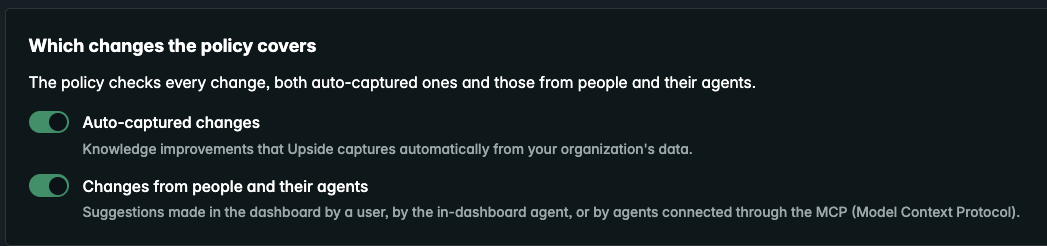
Once enabled, you choose which sources of knowledge the policy covers. Under Which changes the policy covers, there are two independent toggles:
- Auto-captured changes — knowledge improvements that Upside captures automatically from your organization's data (the mining agent's output)
- Changes from people and their agents — suggestions made in the dashboard by a user, by the in-dashboard agent, or by agents connected through the MCP
Both can be on at the same time. Most orgs start with just auto-captured changes enabled, then expand to include people and agents once they're comfortable with their rules.
Writing rules
Rules are written in natural language. A change that a rule confidently describes can go live without a person — rules can be as broad or as narrow as you like.

Rules live in two tabs:
- Publish automatically — rules that describe knowledge safe to auto-publish. If an incoming entry matches one of these rules, it goes live without manual review.
- Always review — rules that describe knowledge an admin should always see before it's published, regardless of other rules.
The policy ships with a set of defaults under Publish automatically. For example:
- Publish notes that describe the format, allowed values, units, or meaning of a field, column, or status value, as long as they do not change how a business metric is calculated.
- Publish notes that say which table, field, report, or system holds a given kind of information.
- Publish corrections that only fix spelling, grammar, formatting, or broken names and references, without changing what the entry means.
- Publish notes that only expand an acronym or abbreviation used in a field or table name.
Add your own rules to either tab, and edit or remove any of the defaults. Each rule has edit and delete controls.
Start with the defaults, then refine. The built-in rules cover common cases. As you see which mined entries consistently pass review, add rules to auto-approve that category. For anything sensitive — metric definitions, fiscal calendar, revenue fields — add an Always review rule to keep a human in the loop.
How policies interact with mining
When a mined entry lands in your library:
- The auditor has already validated the finding (the quality gate described above)
- Your knowledge policy evaluates the entry against your rules
- If a rule matches, the entry is auto-approved and published — no admin action needed
- If no rule matches, the entry stays pending for manual review, just like before
Managing policies via MCP
Admins can also view and update policies through MCP tools:
| Tool | What it does |
|---|---|
get_knowledge_policy | View your org's current policy settings |
update_knowledge_policy | Update policy rules (admin only) |
list_knowledge_policy_runs | View the history of policy evaluations |
list_knowledge_policy_versions | See how the policy has changed over time |
start_knowledge_policy_recheck | Re-evaluate existing entries against updated policy rules |
How It All Fits Together
The mining agent and your knowledge policy work as two halves of a feedback loop:
Quick reference
Roles
| Action | Member | Admin |
|---|---|---|
| See mined proposals in Changes tab | ✓ | ✓ |
| Approve / reject mined proposals | ✓ | |
| Enable knowledge approval policies | ✓ | |
| Write and manage publish / review rules | ✓ | |
| Choose which change sources the policy covers | ✓ |
Updated 9 days ago