

Embed Upside in Salesforce
Put an Upside Miniapp or the Campaign scorecard on a Salesforce record page with the Upside Panel.
The Upside Panel shows an Upside Miniapp, or the Campaign scorecard, on a Salesforce record page, so your team can see it without leaving Salesforce. Each person signs in to Upside once in their browser and then sees only what they can already see in Upside.
Where the panel works. You can add the Upside Panel to Salesforce record pages, such as an Opportunity, Account, Lead, Contact, or Campaign. It can't be added to the Home page or app pages yet. Want it on other Salesforce pages? Contact Upside support and tell us where.
Before you start
- You need a Salesforce admin who can install packages and edit Lightning record pages.
- Everyone who will use a panel needs an Upside account in your organization, with access to the app the panel shows.
1. In Salesforce: install the Upside package
- Open the install link:
https://login.salesforce.com/packaging/installPackage.apexp?p0=04tWQ00000PB0cbYAD. - The install page shows Upside for Salesforce. Keep the default, Install for Admins Only, and click Install. The package has no objects or permission sets, so this choice doesn't change who can see the panel.
- Salesforce asks you to Approve Third-Party Access for
https://embed-app.upside.tech. Check Yes, grant access to these third-party web sites and click Continue. This adds the Trusted URL the panel needs, so there is no separate Trusted URL step.
If your Salesforce uses a custom domain, you can also open
https://YOUR-DOMAIN.my.salesforce.com/packaging/installPackage.apexp?p0=04tWQ00000PB0cbYAD.
The package adds the Upside Panel component. There is no installation key.
2. In Salesforce: add the panel to a record page
-
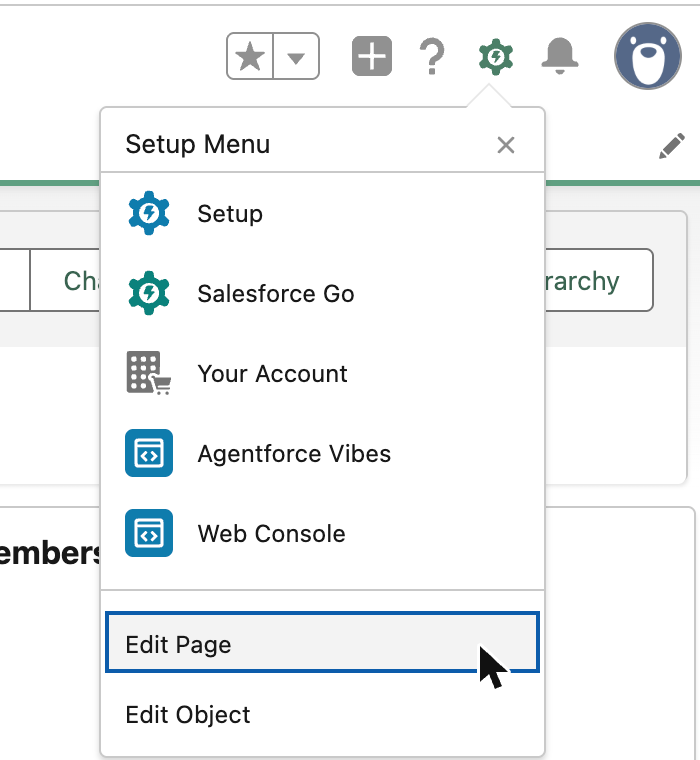
Open a record of the kind that should show Upside, for example a Campaign. Click the gear icon in the top right, then Edit Page.
-
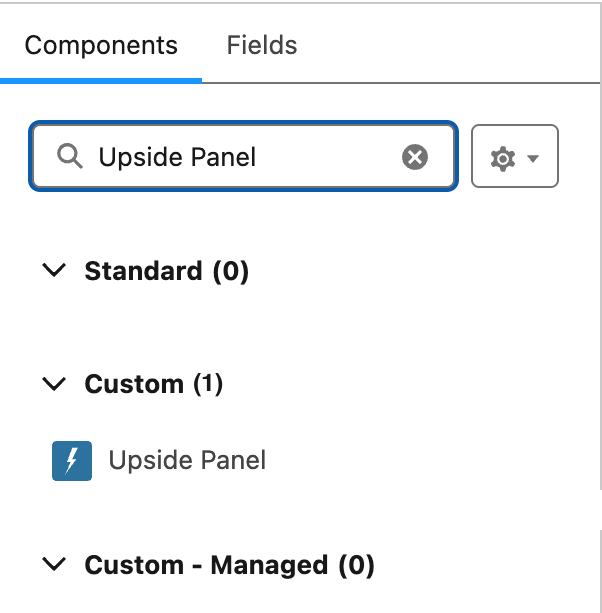
In the Components list on the left, search for Upside Panel and drag it onto the page.
-
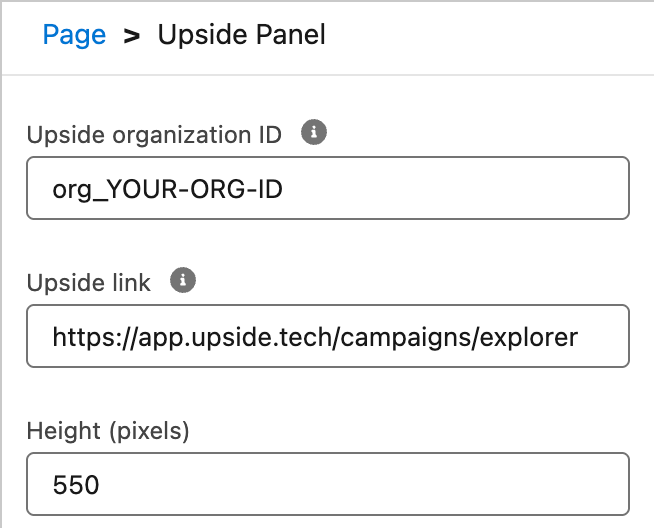
Click the panel to open its settings. You'll fill in the first two in the next steps, so keep this tab open:
- Upside organization ID: step 3.
- Upside link: step 4.
- Height (pixels): optional; the default is 550.
3. In Upside: copy your organization ID
- Open Settings → Company in Upside.
- Click the Organization ID to copy it. It starts with
org_. - Back in Salesforce, paste it into Upside organization ID.
4. Choose what the panel shows
The panel shows one of two things. Pick one and paste its link into Upside link:
- The Campaign scorecard, for Campaign record pages. Use this link as it is:
https://app.upside.tech/campaigns/explorer. On a Campaign page, the Upside panel automatically reads that campaign's Salesforce ID and shows its scorecard, so this one link works for every campaign. - A Miniapp, for any record page. Open the app in Upside and copy the address from your browser's address bar. It looks like
https://app.upside.tech/apps/…. The panel passes the Salesforce ID of the record it's on to the Miniapp as the link parameterrecord_id. A Lead ID starts with00Qand a Contact ID with003, so a Miniapp on a Lead or Contact page can show just that person's data.
5. In Salesforce: check the preview and save
- Check the preview. Edit Page shows the real panel, so a setting that won't work shows its message right away (see Troubleshooting below). A correctly set up panel asks you to sign in.
- Click Save, then Activate the page if it isn't active yet.
Repeat steps 2 to 5 for each kind of record page that should show Upside.
6. First use: sign in
Each person does this once per browser:
- On the record page, click Sign in to Upside in the panel.
- A small window opens. If you aren't signed in to Upside in this browser, sign in there.
- The window asks: Allow the Salesforce panel to use Upside as you in your organization? Check the organization and the Salesforce site, then click Approve.
- The window closes and the panel shows the report for this record.
To end a panel's sign-in, use Sign out in the panel's account menu. It signs out only that organization's panels in this browser.
Troubleshooting
Panel messages
Problems with the panel's settings also show in the Edit Page preview, where a Salesforce admin can fix them.
| Message | What to do |
|---|---|
| This panel doesn't have an Upside organization ID yet | Paste your organization ID into Upside organization ID. Find it in Upside under Settings → Company. |
| This isn't an Upside organization ID / "should start with org_" | Copy the ID again from Settings → Company. It starts with org_. |
| This panel doesn't have an Upside link yet | Paste an app address (app.upside.tech/apps/…) or the Campaign Explorer address into Upside link. |
| This isn't an Upside link | The link points to another site. Paste a link copied from app.upside.tech. |
| This link can't show in a panel | Only an app or Campaign Explorer can show in a panel. Paste one of those addresses. |
| The Campaign scorecard needs a Campaign page | Campaign Explorer works only on Campaign record pages. Move the panel to a Campaign page, or use an app link here. |
| The Upside panel has not loaded | Check that the Upside Trusted URL is active: Setup → Trusted URLs. |
| App not found | Check the link, that the app still exists in Upside, and that it belongs to the same organization as the panel. |
| You don't have access to this app | Ask the app's owner or an Upside admin to share it with you. |
| This campaign isn't in Upside | Upside has no campaign with this Salesforce Campaign ID. A campaign created recently may not have reached Upside yet. |
| Upside is unavailable right now | Wait a moment and try again. |
Sign-in messages
| Message | What to do |
|---|---|
| The sign-in window was blocked | Allow pop-ups for your Salesforce site, then click Sign in again. |
| Upside didn't approve this sign-in | The sign-in window says why. Usually one of the two below. |
| You're not a member of this panel's organization | Sign in to Upside with an account in your organization, or ask an Upside admin in your organization to invite you. |
| The sign-in request expired / was already used | Go back to the panel and click Sign in again. |
| This browser didn't keep the Upside sign-in | Your browser blocked Upside's cookie. Allow cookies from embed-app.upside.tech, then sign in again. |
| You signed out of Upside | Click Sign in to sign in again. |
| You no longer have access to this Upside organization | Ask an Upside admin in your organization to restore your access, or sign in with a different account. |
| This panel was signed in from a different Salesforce | Click Sign in again from this Salesforce. |
Still stuck? Contact Upside support with the message the panel shows and the Salesforce page it's on.
Updated 1 day ago