

API Authentication
To use the Upside API, you need a Personal API Key. Keys are created in the dashboard, tied to your account, and work with any tool that can send HTTP requests.
The Upside API is in beta. Endpoints and response formats may change. There are no guaranteed SLAs at this time. If you have questions, reach out to your Upside team on Slack.
Creating a key
-
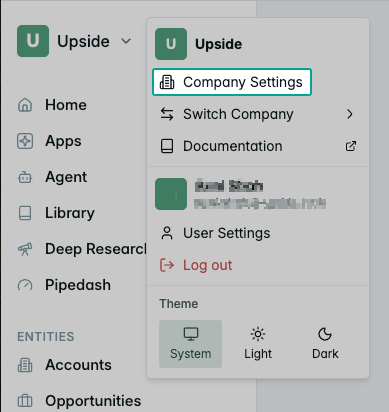
Open the Upside dashboard and go to Settings → Personal API Keys.
-
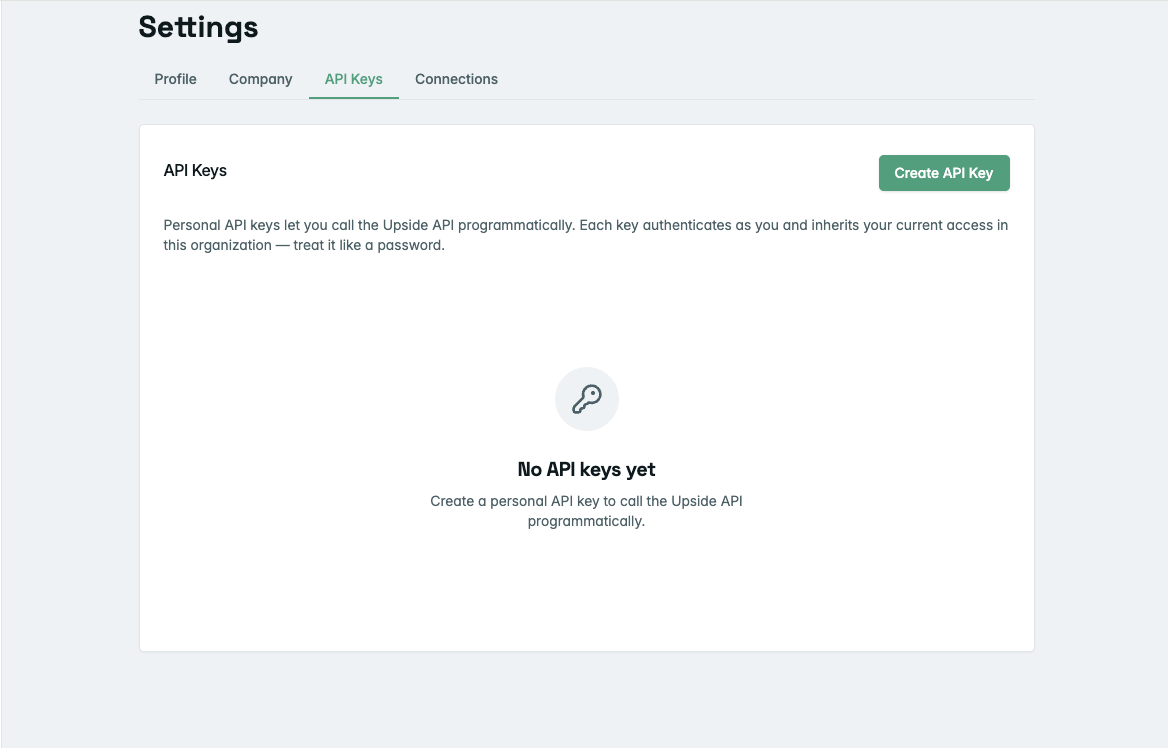
Click Create API Key.
-
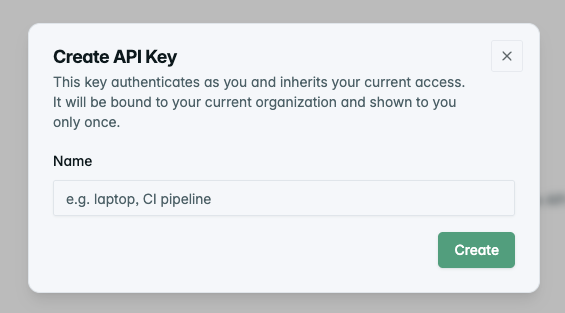
Give it a name (e.g., "laptop," "CI pipeline," "Looker") and click Create.
-
Copy your key immediately — it's shown only once. If you lose it, revoke it and create a new one.
Your key is displayed exactly once at creation. Store it somewhere safe before closing the dialog.
Using your key
Include your key in the Authorization header on every request:
curl https://app.upside.tech/api/datahub/accounts/ \
  -H "Authorization: Bearer sk_your_key_here"
In Python:
import requests

headers = {"Authorization": "Bearer sk_your_key_here"}
response = requests.get(
    "https://app.upside.tech/api/datahub/accounts/",
    headers=headers,
)
data = response.json()
One key per organization
Each key is tied to your account in a specific organization. All API requests are automatically scoped to that organization — you don't need to pass an org ID. If you work across multiple Upside organizations, create a separate key for each one.
Managing your keys
From the Personal API Keys settings page, you can:
- View all your keys — see the name, creation date, last used date, and expiry status for each key
- Set an expiry date — optionally set a date after which the key stops working
- Revoke a key — immediately and permanently disable a key
Revoking a key takes effect right away. Any requests using that key will start returning errors immediately.
Expiry
Keys don't expire by default. If your team requires key rotation, you can set an expiry date on any key after creating it. Once set, the key will stop working after that date.
What your key can access
Your API key gives you the same access you have in the dashboard — the same accounts, opportunities, reports, and tools. There's no difference in what you can see or do compared to logging in.
The one exception: API keys cannot create, revoke, or modify other API keys. Key management always happens through the dashboard.
Troubleshooting
| Error | What it means | What to do |
|---|---|---|
401 Unauthorized | Key is missing, invalid, or expired | Check the key is correct and hasn't been revoked or expired |
403 Forbidden | You don't have permission for this action | Verify you have the right role in your organization |
429 Too Many Requests | Too many requests in a short window | Wait and retry — check the Retry-After header for timing |
Updated 18 days ago