

Using the Knowledge Library
Read your account's brief, suggest edits and new facts right in the document, and, as an admin, approve, publish, and roll back clean versions.
The Knowledge Library is Radiant as a document you can read and shape. Everything Upside knows about how your account buys, renews, and operates lives here as a brief — kept current by your team and the mining agent, and verified before it's published.
The page has two tabs over one heading: Document is the brief you read; Changes is the queue where proposals are reviewed and published as numbered versions.
Start here: the three ideas
Three ideas explain almost everything on the page.
📄 It's a brief of facts
Knowledge is stored as short facts, grouped into topics. Everything in the Document tab is published: verified, trusted, and live.
Two roles, one page. Members read and propose changes. Admins do that plus approve, publish, and roll back. The page adapts to your role — no toggle to flip.
What you're looking at
| Area | What it is |
|---|---|
| Heading + tabs | The Knowledge Library title and the Document / Changes tabs. The Changes tab carries a count. |
| Document tab | The brief: topic sections and their published facts. Proposed changes appear inline as tracked changes. |
| Changes tab | The review queue. Admins approve, reject, and publish here; members track their own suggestions under Your suggestions. |
| Top controls | Collapse all, Hide changes, + Add fact, and an admin ⋯ menu holding Version history. |
| History panels | Per-fact version history and the full library version history, with one-click rollback for admins. |
Below the heading, an intro line scrolls with the document: the account, the fact count, and Last updated. For admins with staged changes, a green Publish button sits here too. The Changes tab reads Your suggestions for members and carries the count of your own pending proposals.
How a change flows
Every change — an edit, a new fact, a new topic — travels the same path. Approving a change publishes it by default, so it goes live the moment an admin approves it.
An admin who wants a second pair of eyes, or wants several changes to land together, can approve without publishing — see Reviewing and publishing below.
Not every proposal reaches "published." A proposal lands in one of five states:
Pending: awaiting review
A submitted suggestion. Shows as a tracked change and a Pending card. Members see only their own; admins see everyone's.
Approved: agreed, and usually live
An admin approved it. By default that publishes it. If approved without publishing, it waits under Changes approved until the next publish; admins can Unapprove it back to pending.
Published: live and versioned
Part of the live brief, tied to a numbered version. Published facts are frozen; changing one means proposing a new edit.
Rejected: terminal
An admin declined it with a reason the proposer can see. Rejection is final — the card and tracked change disappear. To revisit the idea, propose it anew.
Withdrawn: retracted by the proposer
A member pulled back their own pending suggestion before review. Withdraw is the proposer's exit; an admin reviewing a change (even their own) uses Reject instead.
Working in the document
Everyone can do this, member or admin, in the Document tab.
Reading a fact
Facts are grouped into topics — each a heading, optional description, and its published facts as short paragraphs. Facts with no topic collect under Uncategorized.
Under each fact, a quiet provenance line carries the details:
- who proposed it (a teammate, the mining agent, or the system),
- the source citation, if one was given,
- and, for admins, a versions chip that opens the fact's history plus a Remove control.
A healthy published fact carries no status marker. Admins see one only for an anomaly: ⚠ Not approved flags a live fact that was never verified.
Suggesting an edit
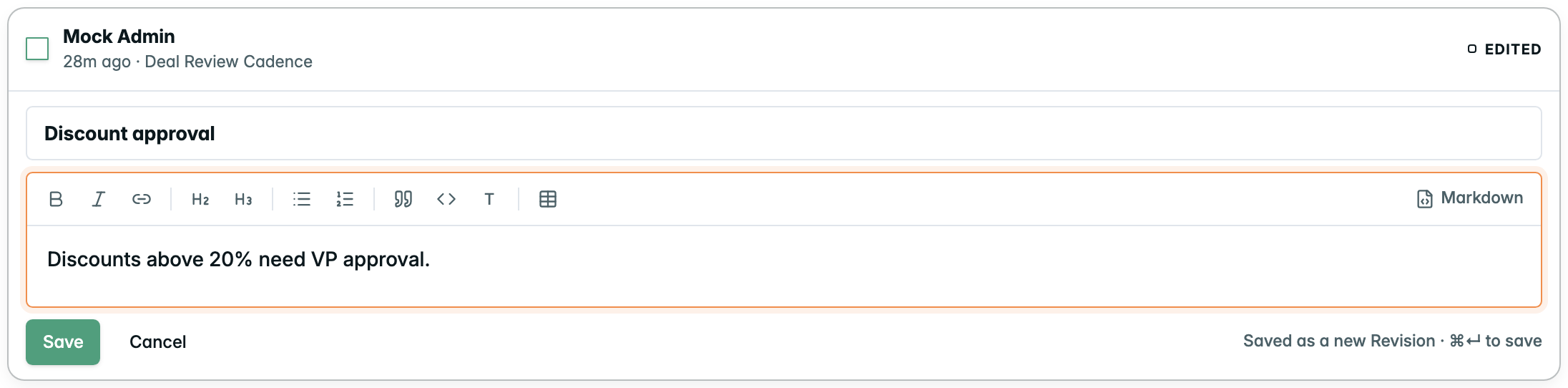
Click any published fact to open its editor, edit the pre-filled text, and submit — you're proposing, not overwriting. Your edit is tracked and routed to review.
One change per fact at a time. If a fact already has an open change, the editor won't open until it's resolved. Press
⌘↵to save,Escto cancel.
Adding a fact
At the bottom of every section is + Add a fact to [Topic], and + Add fact at the top of the page files one into any topic. Write the fact, add an optional source, and propose it. It stays Pending until an admin reviews it.
Starting a new topic
Below the last section, Start a new topic opens a composer for knowledge that doesn't fit existing groups. Name the topic, add an optional description and first fact, then propose it. Both enter review together.
Giving a fact a title
Every fact can carry a short title above the body. It's optional — the Title (optional) field appears wherever a fact is written, and a fact with no title just reads as its body.
Titles travel through review like any other change: renaming a fact (redline in the heading) or clearing the title to remove it both ride through as tracked changes you approve or reject normally.
Following your suggestions
Your proposals collect in the Your suggestions tab. Each card reads Awaiting admin review, with Withdraw to retract it before review and Edit to reword it. Once approved, the card shows it's approved.
Spotting tracked changes
Pending changes render in the document, so the brief and the review queue tell the same story:
- A change leads with its state: a Pending chip (amber, clock) or an Approved chip (green, check — agreed but not yet live). An amended change also shows Edited.
- Edits to an existing fact show a word-level redline (removed words struck through in red, added words underlined in green) inside an amber-ruled block.
- New facts appear as green-ruled blocks beneath a section's published facts, attributed to whoever proposed them.
- Click a tracked change to jump to its card in the Changes tab. Use Hide changes for a clean read of the published brief only.
Reviewing and publishing
The admin's job, in the Changes tab.
Approving and rejecting
Every pending suggestion lands as a card showing the proposer, timing, topic, whether it's a New fact or an Edit, and the proposed text (edits with an inline redline).
- Approve takes the change live in one act — approve and publish together. Reject opens a dialog for a required reason the proposer will see. Edit rewords the change first.
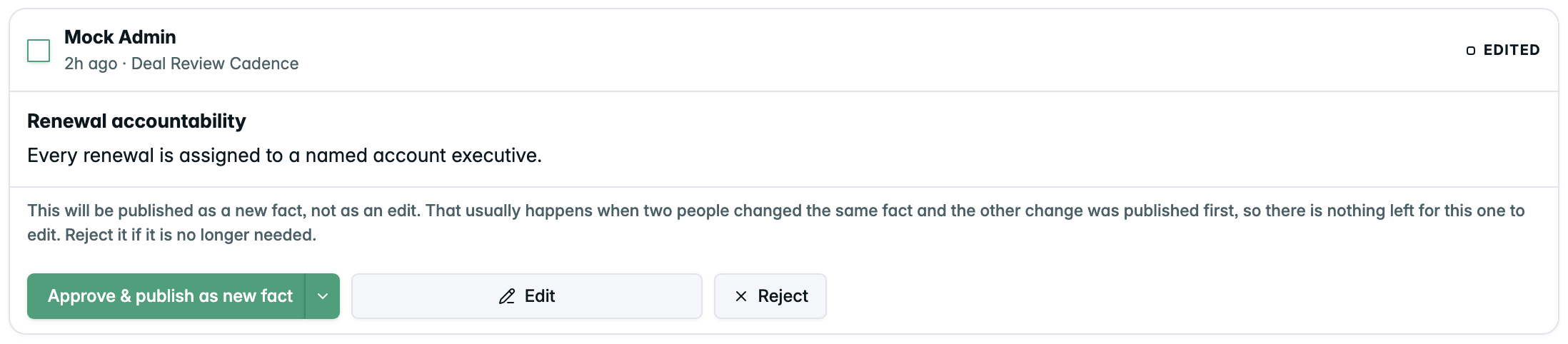
- The caret beside Approve holds the exceptions: Approve without publishing (keep it staged for a later publish) and, when the target fact is gone, Approve as new fact, without publishing.
- Select all plus Approve N / Reject N handle a batch in one move. A bulk approve of rivals can't publish, so it stages instead.
- The queue splits into Changes pending and Changes approved (grouped under Approved for Version N). Approved-but-unpublished changes wait there; Unapprove sends one back to pending.
When two changes edit the same fact
The one-change-per-fact rule keeps collisions rare, but two people can still edit the same fact without seeing each other's work. The queue bands the rivals together as competing edits and asks you to choose one — nothing is broken, and neither is wrong.
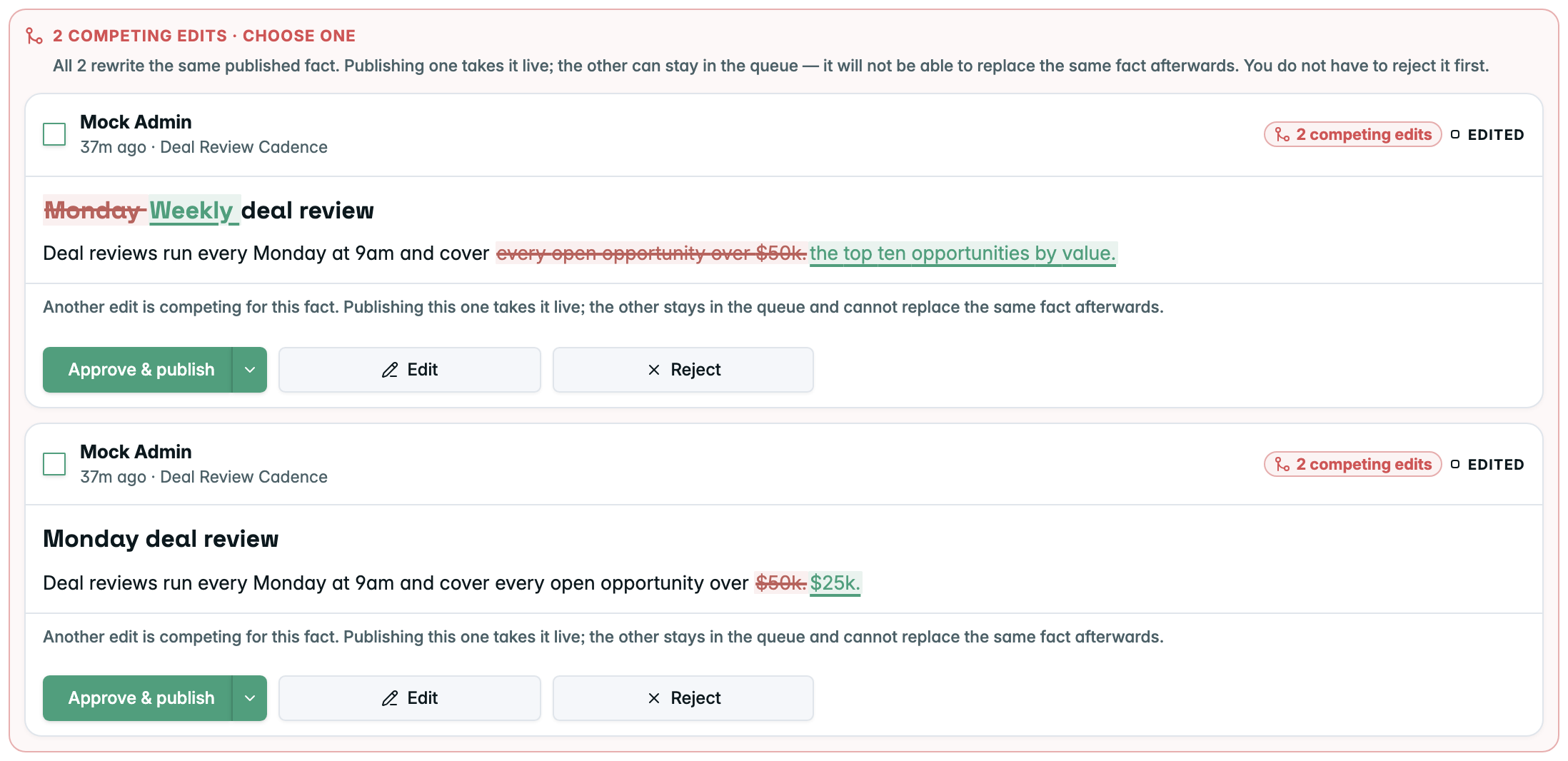
- Publishing one wins the fact. The other isn't rejected — it stays in the queue but loses its claim. Leave it, edit it, or reject it; you don't have to reject it first.
- A superseded change can still publish. The loser is flagged but still publishable, in case the approved rival was the wrong call.
- If the rival already published, the leftover becomes a new fact. With nothing left to edit, approving it keeps the wording as a standalone fact and the redline drops away.
Removing an outdated fact
On the provenance line, an admin can choose Remove to drop a published fact. Removal is immediate: it cuts a new numbered version without that fact — no staging, no batch, nothing to publish. To bring the fact back, use Roll back to this version in library history to return to a snapshot that still had it.
Publishing staged changes
When changes are approved without publishing, they collect under Changes approved, and a Publish N changes button (also green, in the intro line) takes them live together as one numbered version — keeping every version clean.
Resolve conflicts before publishing. If two approved changes still compete for the same fact, the publish is blocked until you resolve it. Unapprove or reject all but one — or publish the winner from its own card — then publish. Your approvals stay intact.
Version history and rollback
Per-fact history
The versions chip under a fact opens its Version history: every published revision, newest first, with the current one badged Current. Admins get Restore this version, which proposes that older text as a new pending edit rather than changing the live brief.
Library version history
The admin ⋯ menu opens Library version history: every published snapshot, newest first, with its publish date and note. Any non-active version offers Roll back to this version, which re-points the active library to that snapshot.
Rollback is safe. It never deletes anything — it only changes which version is active, so you can always roll forward again. Version numbers follow publish order, so Version 1 is always the first published.
Quick reference
Actions by role
| Action | Member | Admin |
|---|---|---|
| Read the published brief | ✓ | ✓ |
| Suggest an edit | ✓ | ✓ |
| Add a fact / start a topic | ✓ | ✓ |
| Withdraw your own suggestion | ✓ | |
| Approve / reject (single or batch) | ✓ | |
| Unapprove an approved change | ✓ | |
| Remove a published fact | ✓ | |
| Publish a version | ✓ | |
| View version history | ✓ | ✓ |
| Restore a fact version / roll back | ✓ |
Keyboard shortcuts
| Shortcut | What it does |
|---|---|
⌘↵ | Save the current suggestion |
Esc | Cancel and close the editor |
Updated about 1 month ago